Three steps
Copy the cells in Excel
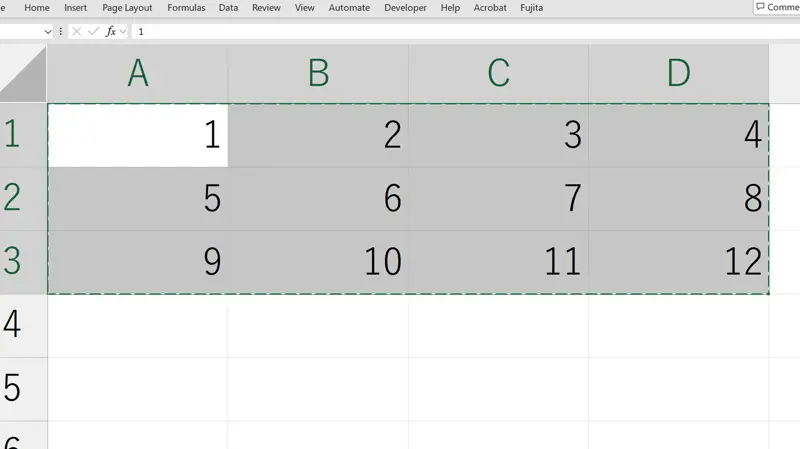
Select the range containing the text or values you want to transfer, then press Ctrl+C. This example uses three rows and four columns: twelve cells in total.
Select the destination shapes
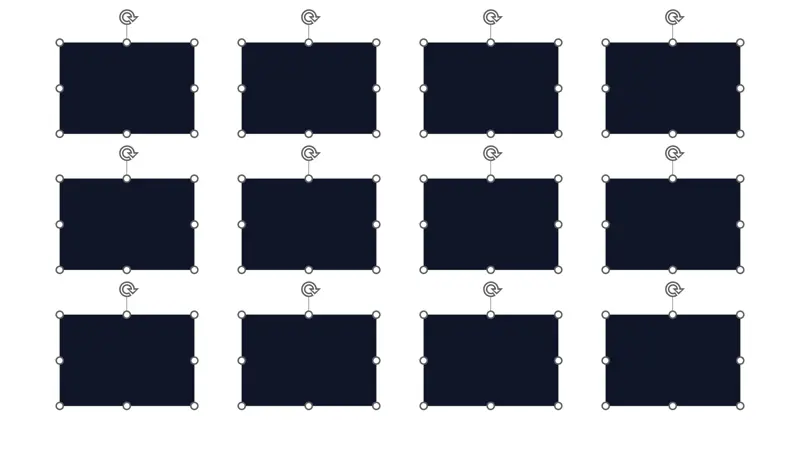
Arrange and select the PowerPoint shapes that should receive the text. Using the same row and column layout as Excel makes it easier to check which cell goes where.
Transfer the contents
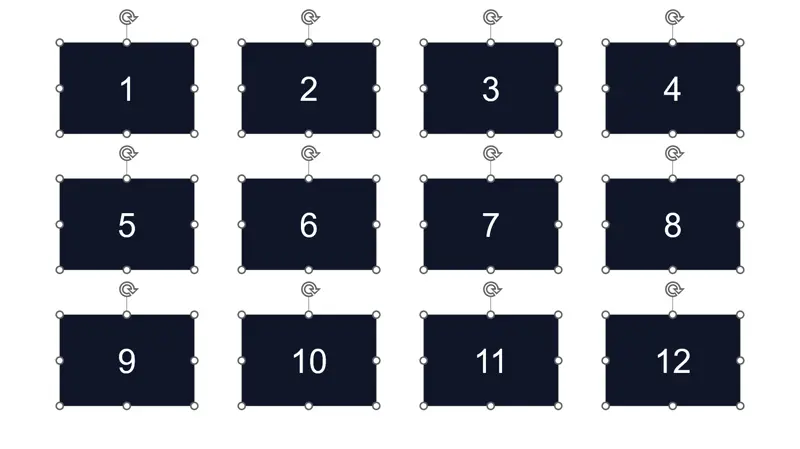
On the AltShift tab, run “Transfer Excel cells to objects,” or press Alt → M → VE in sequence. Cells and shapes are each ordered row by row, from top to bottom and left to right, then matched in that order.
When to use it
Update comparison tables built from shapes, value boxes, or labels using content from Excel. Text goes into existing shapes. Text-capable shapes inside groups are included; objects without text input, such as lines, are skipped.
Before you transfer
- The transfer replaces existing text. An empty Excel cell also clears the text in its corresponding shape.
- If the cell count differs from the number of text-capable shapes, AltShift transfers the smaller count and then shows a warning. Extra cells are ignored; extra shapes are left unchanged.
- AltShift does not check that the row and column counts match. The correspondence follows the ordered positions, so check the result when shapes are missing or the layout is irregular.