PowerPoint VSTO Add-in for Windows

Move PowerPoint
at the Speed
of Thought.

"Match sizes." "Snap edges." "Toggle word wrap." --
Operations that take multiple steps in PowerPoint,
all executable with a single keyboard shortcut.

No credit card required 5-minute install Cancel anytime
Keyboard Shortcuts
Align Left
AltMAL
Match Width
AltMWR
Extend Left Edge
AltMEL
Toggle Text Wrap
AltMTW
Swap Positions
AltMSW
Standardize Fonts
AltMF
About AltShift
100+ operations added to PowerPoint
14-day free trial
Who It's For

Even with shortcuts,
some operations never get faster.

No matter how many PowerPoint shortcuts you learn, operations that don't exist can't be sped up.
AltShift makes those "missing operations" executable via keyboard shortcuts -- a PowerPoint add-in for Windows.

Common Frustrations

Sound familiar? These PowerPoint
time-wasters add up fast.

You know exactly what the slide should look like. But PowerPoint's clicks and menus can't keep up with your thinking. AltShift fixes that.

📐

Can't choose your own alignment anchor

PowerPoint's built-in alignment always picks the outermost shape as the reference. You can't say "align everything to this shape" without dragging guide lines or eyeballing it every time.

📏

Resizing shapes one by one

Want five shapes the same size? Open the properties pane, note the dimensions, type them into each shape. The more shapes, the more tedious it gets.

🔄

Too many clicks for simple toggles

Toggling "Wrap text in shape" means right-click, Format Shape, Text Options, Text Box... That's five clicks for a one-bit setting you change dozens of times a day.

🎨

Hunting for theme colors every time

Each time you color a shape, you open the fill menu and scan the palette. Color ten shapes and you've clicked 30+ times. Multiply that across a deck and it's pure overhead.

📊

Excel-to-PowerPoint copy-paste loops

Copy one cell, switch to PowerPoint, paste into a shape, switch back, copy the next cell. Repeat for every data point. It's a productivity black hole.

↔️

Swapping two shapes takes too many steps

Move one shape out of the way, move the other into its place, then move the first shape back. Three steps minimum, and you'll probably misalign something.

Features

Multi-step operations,
one shortcut.

Match sizes, snap edges, toggle word wrap, transfer text -- operations that take multiple steps in stock PowerPoint, all executable with a single keyboard shortcut.

Lock & Extend Edges

Before
BeforeAfter
AltMEL

Lock one edge of a shape and stretch the opposite edge to match a reference. Perfect for aligning bar-chart-style layouts to a baseline or guide.

Size Matching & Extension

Before
BeforeAfter
AltMWR

Instantly match selected shapes to the reference shape's width, height, or both. Extend shapes by locking one edge and stretching the opposite edge to a target.

Excel ↔ PowerPoint Text Transfer

Before
BeforeAfter
AltMVE

Copy text from Excel cells and paste into multiple PowerPoint shapes in one click. Formatting is preserved. No more switching back and forth.

Instant Position Swap

Before
AltMSW

Select two shapes and swap their positions in one keystroke. Works with different-sized shapes too -- centers are used as the swap point.

Align to Any Reference Shape

Before
BeforeAfter
AltMAL

Left, right, center, top, bottom, and distribute evenly -- all with a single keystroke. Unlike PowerPoint's default, AltShift lets you choose any shape as the anchor.

One-Click Shape Insertion

Before
AltMIS

Insert pre-built shapes -- axes, sticky notes, takeaway boxes, Harvey balls, and table templates -- with a single click. Stop building them from scratch.

Bulk Font & Format Standardization

Before
AltMF

Standardize all fonts on a slide to your favorite fonts (multiple presets supported) with one click. Toggle word wrap on/off instantly via keyboard shortcut.

Color Palette & Sidebar

Original
Click on Sidebar

Apply fill, line, or font color from an always-on sidebar palette with a single click. Save custom palettes for different clients or brand guidelines.

Smart Grouping & Ungrouping

Before
AltMGH

Automatically detect shapes in the same row or column and group them instantly. Recursively ungroup nested groups with a single command.

Text Swap & Auto-Numbering

Before
AltMTX

Swap text between two shapes instantly. Auto-number multiple shapes from top-left to bottom-right. Accelerates table and framework creation.

Batch Select Similar Shapes

Before
AltMSESS

Select all shapes with similar shape type, color, or size at once. Filter by position too -- "select all shapes aligned to this left edge." Eliminates repetitive selection work.

Visual-Edge Alignment for Rotated Shapes

Before
BeforeAfter
AltMAL

Proprietary geometry calculations align and resize rotated shapes by their visual edges, not their bounding boxes. Pixel-perfect results every time.

These are just a few of the 100+ features included.

Download Free and Try Them All
Body Range

Define the "body" of your slide
and use it as your alignment anchor.

Well-structured slides share a common layout. AltShift uses that structure to make alignment faster.

slide.pptx
1
TITLE
2
MESSAGE
3 BODY
↑ Top edge
↓ Bottom edge
← Left
Right →

Professional slides typically consist of a Title and Message at the top, and a Body area in the center.
The body is where you place charts, tables, and diagrams that support the message. It's the core visual area of your slide.

Define Your Body Range

Simply specify "the body starts here and ends here" on your slide. All subsequent operations will use that range as the reference.

Align to Body Edges

Snap shapes to the body's left, right, top, or bottom edge with a single keystroke. Center within the body width in one operation.

Extend to Body Edges

Stretch a shape's edge to the body boundary in one keystroke. Lock one side and extend the other. Dramatically faster framework layouts.

Return on Investment

At $20/month,
get back
16 hours every month.

If 20% of your working hours go to PowerPoint formatting (not thinking, just clicking) --
cutting that in half with AltShift frees up 192 hours per year (about 24 working days).

The $20/month investment pays for itself on day one.

Time Saved Simulation
Monthly working hours 160 hours (20 days × 8h)
PowerPoint formatting (excl. thinking) 32 hours (20%)
Reduction with AltShift 50%
Monthly time saved 16 hours
AltShift monthly cost $20
Return on Investment (ROI) ~5,900%
Getting Started

Install in 5 minutes.
Start using immediately.

Try it free for 14 days. If you like it, purchase a license.

STEPS 1-3: FREE TRIAL

No credit card required. From download to first use in under 5 minutes.

1

Download

Click the "Free Download" button on this page to get the installer (.exe).

If your browser shows a warning
Chrome: "Not commonly downloaded" appears at bottom → Click "Keep".
Edge: "Couldn't be downloaded safely" → Click "..." → "Keep".
2

Install

Double-click the .exe file to run the installer (about 3 minutes). When you launch PowerPoint, the "AltShift" tab will appear in the ribbon.

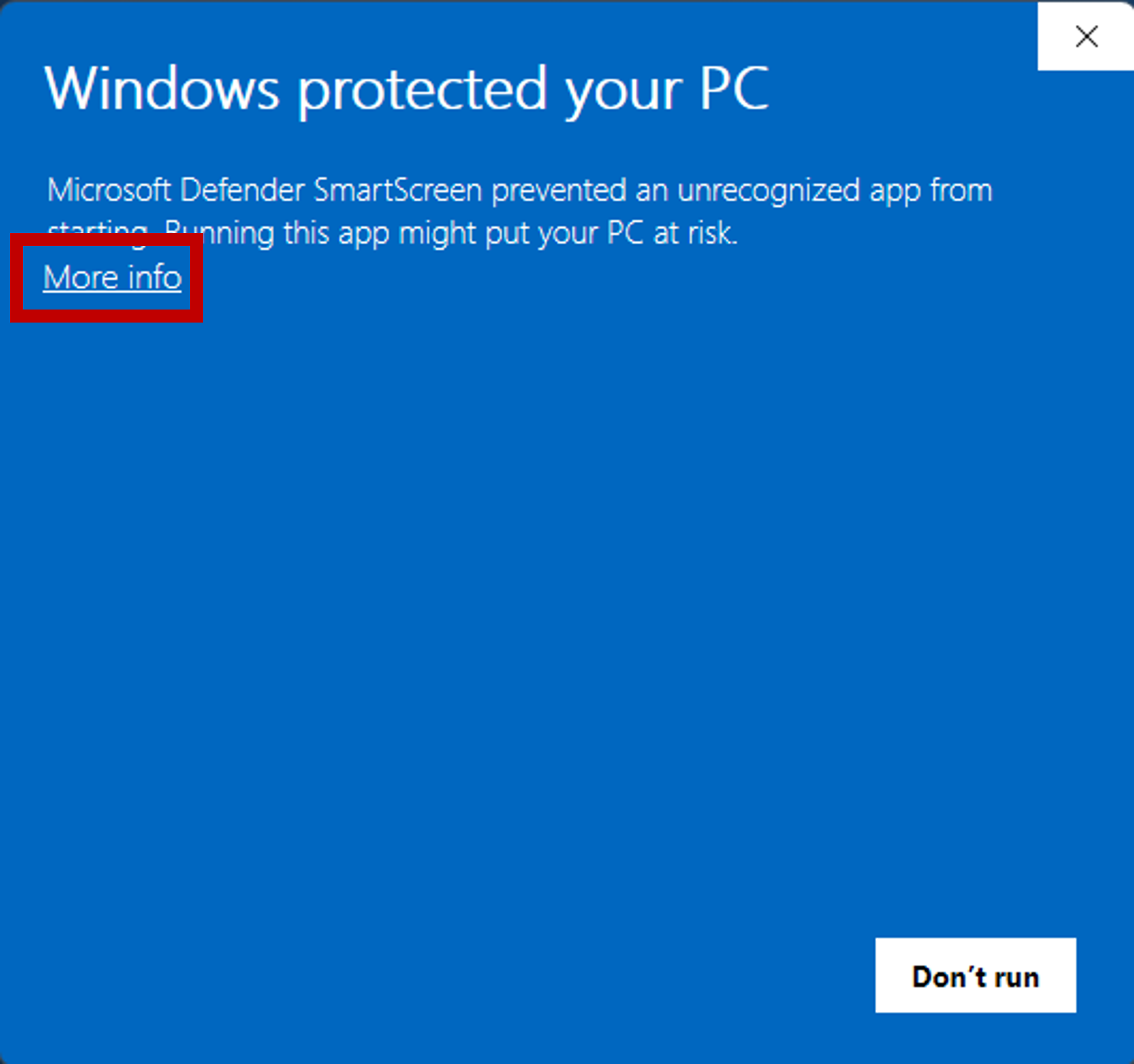
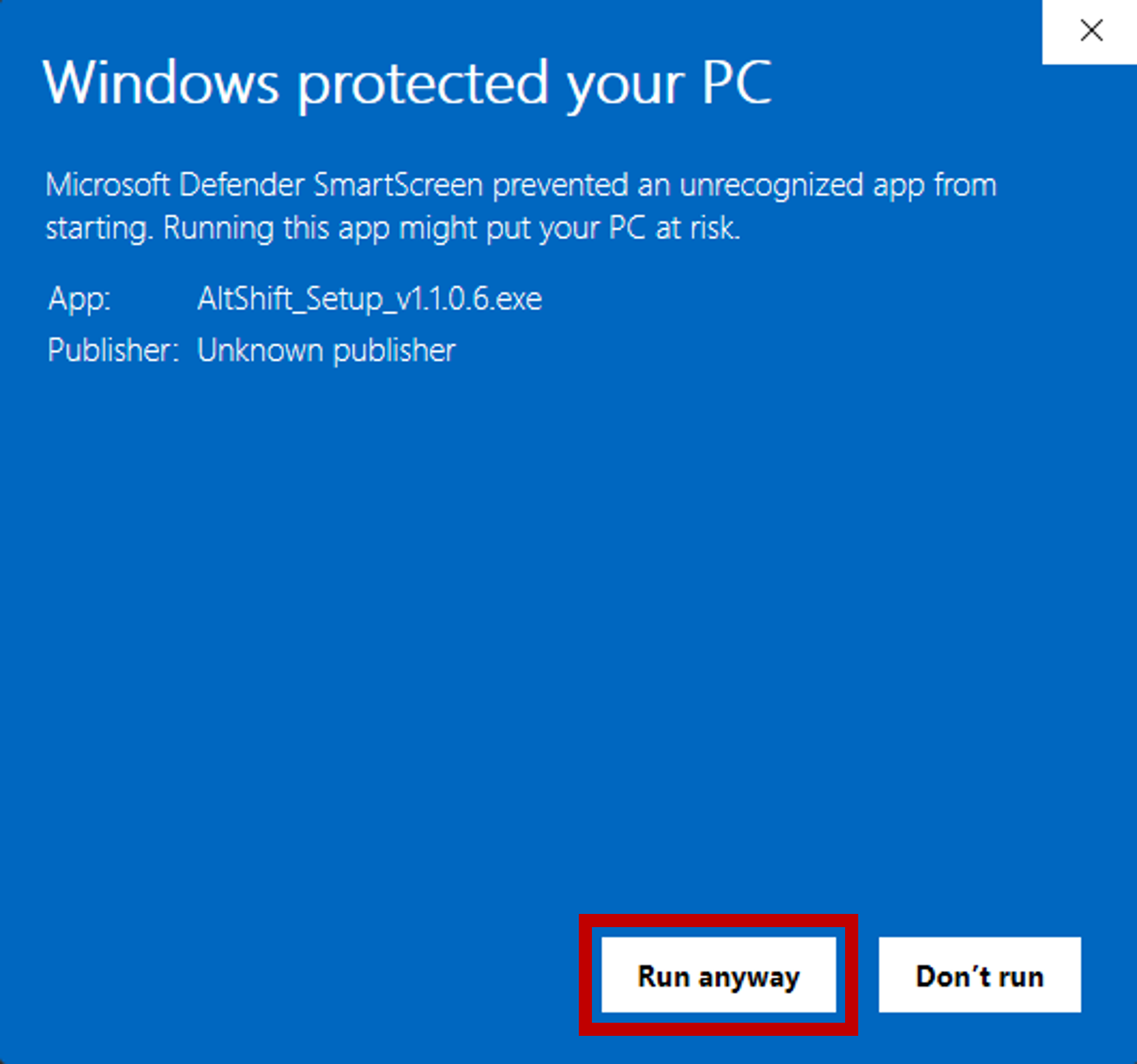
If "Windows protected your PC" appears
This is Microsoft Defender SmartScreen. Click ① "More info"② "Run anyway". AltShift is safe software; this warning appears because it's a new application.
SmartScreen warning - click More info
① Click "More info"
SmartScreen warning - click Run anyway
② Click "Run anyway"
3

Start Trial

Enter your email address in the dialog that appears on first launch. You'll get full access to all features for 14 days, completely free.

Like it?
STEPS 4-6: PURCHASE A LICENSE

You can purchase during or after your trial.

4

Complete Checkout

Choose a plan from the pricing section and enter your email and payment details on the checkout page (Stripe).

5

Receive Your License Key

After payment, your license key will be sent to the email address you entered.

Can't find the email?
The email may have been filtered to your spam or junk folder. Please check your spam folder. The sender is support@getaltshift.com.
6

Enter License Key

Click the "License" button in the "AltShift" tab on the PowerPoint ribbon, then paste the key from the email. No reinstallation required — just continue using AltShift.

Testimonials

What users are saying

★★★★★

"Choosing any shape as the alignment anchor" -- this one feature changed how I build slides. PowerPoint's default always picks the edge shape, so I had to adjust every time. Now it's one keystroke and done.

★★★★★

The position swap feature is surprisingly powerful. "I want to swap these two shapes" happens all the time, but it used to take three steps. Now it's instant.

★★★★☆

The Excel-to-PowerPoint transfer feature is a game-changer. What used to be cell-by-cell copy-paste now happens in one click. I'm saving 1-2 hours every week.

★★★★★

Being able to match multiple shapes to a reference shape's size in one click is incredibly helpful. Width only, height only, or both -- the granularity shows real thought went into this.

★★★★★

The extension feature is incredibly useful. Lock the right edge and stretch only the left edge to a reference -- all with one keystroke. Framework box layouts that used to take minutes now take seconds.

★★★★★

I use the one-click axis and sticky note insertion every day. The axis comes with text and underline pre-grouped, and the dashed lines remember your style settings. Slide-to-slide consistency is automatic now.

Pricing

Simple, Transparent Pricing

Start with a 14-day free trial. No credit card required.

Limited-Time Launch Offer

Enter the coupon code at checkout: Monthly gets 50% OFF for the first 3 months, Annual gets 50% OFF.

ALTSHIFT-50OFF
Monthly Plan
$20 $10 / mo
Annual Plan
$200 $100 / year

* Monthly: 50% OFF for the first 3 months / Annual: 50% OFF the yearly price

* Valid for both Monthly and Annual plans. Until May 31, 2026. Enter the coupon code on the Stripe checkout page.

Monthly
$ 20 / mo

Cancel anytime

Buy Now
  • All features included
  • Up to 2 devices
  • Free updates
  • Email support
  • 14-day free trial included
Annual Save 2 months
$ 200 / year

$16.67/mo equivalent

Buy Now
  • All features included
  • Up to 2 devices
  • Free updates
  • Email support
  • 14-day free trial included

If you purchase during your trial, remaining trial days are added to your subscription. Billing starts immediately, and your next renewal date = remaining trial days + subscription period.
Prices are subject to change without notice. Existing subscribers will keep their original rate until they cancel.

System Requirements

Windows 10 / 11
PowerPoint 2016
PowerPoint 2019
PowerPoint 2021
Microsoft 365
.NET Framework 4.7.2+

macOS is not currently supported.

For team or enterprise licensing, contact us at support@getaltshift.com.

Try it free for 14 days

Just install and you're ready to go. No credit card required. If you purchase during your trial, remaining days carry over.

Free Download
Questions

FAQ

Have other questions? Email us at support@getaltshift.com.

The operations PowerPoint is missing.
All of them, added.

100+ operations stock PowerPoint doesn't have, available as instant shortcuts. Try it free for 14 days. No credit card required.

🎉 Coupon ALTSHIFT-50OFF -- Monthly 50% OFF for 3 months / Annual 50% OFF (until 5/31)

Start Free Trial See Pricing